Your Arabic workspace Your draft stays in this browser
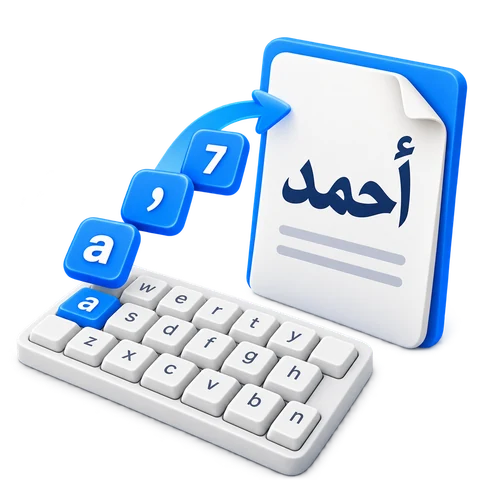
Type Arabic sounds using English letters. Letter suggestions work directly in your browser.
Loading keyboard…
Arabic keys and phonetic typing work in your browser. Smart word suggestions need an internet connection.
Learn the keyboard
Turn an English spelling into Arabic word suggestions
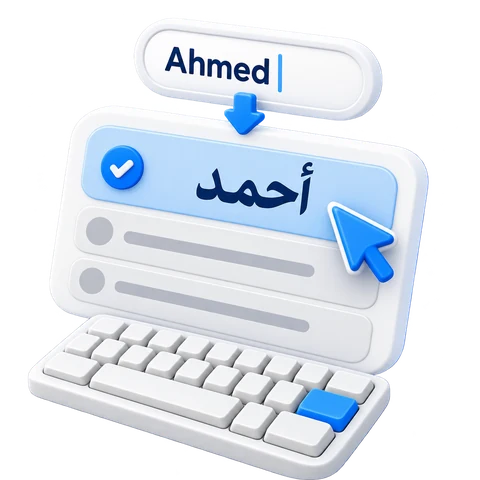
Smart previews Arabic candidates while you type an English word. Choose a suggestion or press Space to insert a result, then review its spelling. The Ahmed example chooses the dictionary spelling with initial hamza.
Type the word, then review itAhmed + Space
Reviewed Arabic spellingأحمد
These text examples come from the keyboard. Arabic remains selectable text; this comparison is not an editor screenshot.
Type an English spelling and pause for suggestions. Choose a preview or press Space to finish the word.
How word conversion works
Select Smart keyboard and type Ahmed on your physical keyboard. After two or more characters and a brief pause, suggestions appear beside the caret. The English text stays unchanged until you choose a candidate or finish the word.
Space accepts the highlighted candidate, or the first available suggestion, and keeps one space after it. Enter accepts a choice when the popup is open. For Ahmed, the dictionary offers the Arabic name with initial hamza. Choose that spelling and review it; the service suggests words rather than translating an English sentence.
Review words beside the caret
The word popup can appear while you type and after conversion. Choose the intended spelling without retyping the sentence.
Choose with touch, a mouse, or the keyboard
Click the Arabic word you want. Use arrows and Enter when the popup is open, or a displayed Alt+number shortcut. Escape closes the popup and leaves the text unchanged.
The original English spelling is included among the choices. A candidate replaces only its word, preserving nearby text and any following space or new line. Undo reverses the choice.
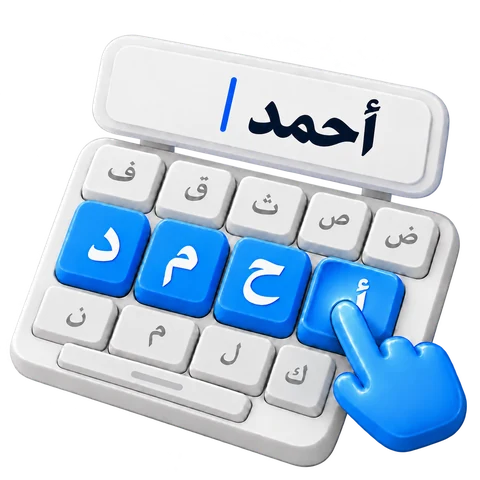
If a suggestion needs a letter correction, select only that letter and click the Arabic key you need. Shift reveals alternate characters; for example, the H-position key gives alif with hamza above. Turn Shift off before returning to the base Arabic keys. A correctly chosen Ahmed candidate needs no initial-alif correction.
Use Arabic keys whenever you prefer
Smart has Arabic virtual keys. Clicking one inserts its character directly, without a word request.
Mix direct entry with word suggestions
Use Arabic keys for a letter, punctuation, or spelling you already know. Clicking an Arabic key does not submit a transliterated word.
The final row also provides the eight vowel marks. Place the caret after an Arabic letter before adding its mark.
Make Arabic text easy to read
Change the appearance of the complete draft from Text style. Start with Noto Kufi Arabic at 22 px, then adjust it for your task.
What the style controls change
Open Text style to choose a font, set a size from 12 to 120 px, change the text color, or apply bold, italic, underline, and strikethrough. These settings apply to the whole draft rather than a selected phrase.
Text direction is independent of the interface language. Keep right-to-left for an Arabic paragraph. Reset style restores the starting appearance without clearing the words.
Copy, download, or look up your text
Copy the draft, download an editable Word document, or save a PNG image. Use Search your text for a web search or share action.
Choose the output for your next step
Copy copies the complete draft as text. Save Word (.docx) keeps editable text and the selected overall style. Save image (.png) produces a white-background image; its words are no longer editable as text in that image.
Word and image files are created in your browser. An oversized image can reach a limit; shorten the draft or use Word if the image cannot be created.
Search your text uses a selected passage when one is selected, otherwise the complete draft. Choose a destination and press Open to send that text to the external service.
Try it in three steps
Choose Smart keyboard
Select Smart, place the caret in the editor, and type an English spelling such as Ahmed.
Choose or finish the word
Pause for a preview. Click a candidate or press Enter to accept the highlighted choice; Space accepts a suggestion and adds one space.
Review the spelling and continue
Choose the Ahmed spelling with initial hamza and review the word. Use the Arabic keys only if a letter needs correction. Continue the sentence, then copy or download it.
Your text and the suggestion service
Smart sends only the current transliterated word to our suggestion service, including previews while you type. Recent suggestions are reused in this page's memory, without a saved Smart word-history or training profile. Direct Arabic key entry, editing, and Word or PNG generation run in your browser. External search and share actions send their text to the selected destination.
Explore three practical guides, each with a working example, clear steps and an English video tutorial.
English keys. Arabic letters.
Fast Arabic keyboard
Type familiar English sounds and see Arabic letters as you go. Choose letter alternatives, add vowel marks, and keep writing without a dictionary connection.